
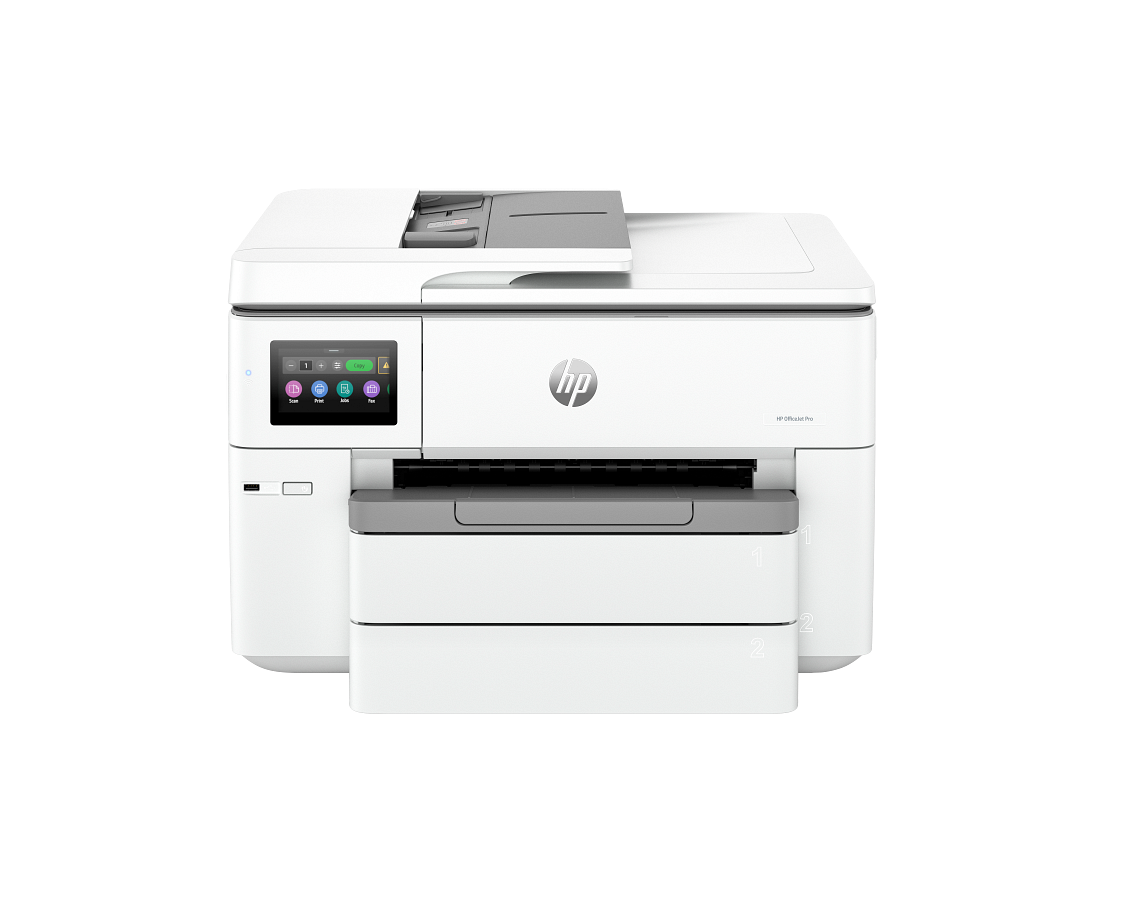


HP OfficeJet Pro Cartridge Not Communicating? Here’s the Fix
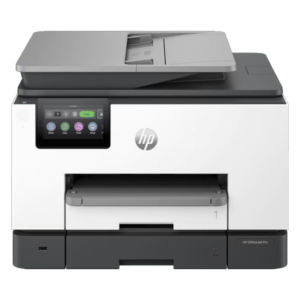
Applies to: HP OfficeJet Pro 7740, 9730/9730e, 9130, and other HP OfficeJet Pro wide-format and all-in-one printers using HP 954, 954XL, 962, or 962XL ink cartridges.
If your HP printer suddenly shows an error like:
“Cartridge Problems – The indicated cartridges are not communicating correctly with the printer. If this problem persists, replace the cartridges.”
…right after installing a new ink cartridge, don’t panic and don’t rush to buy a replacement yet. This is one of the most common HP OfficeJet Pro errors, and in most cases it’s a simple contact or connection issue rather than a faulty cartridge. Our technicians at IT Plus Trinidad walk clients through this fix over the phone or WhatsApp almost every week.
Follow the steps below in order — most customers resolve it within the first two steps.
Why This Error Happens
HP cartridges have small copper contact points that connect with pins inside the printer carriage to communicate ink levels and authenticity. This error appears when that connection is interrupted, most often because of:
- Leftover protective tape or film on the new cartridge’s contacts
- Dust or residue on the contact points
- A cartridge that isn’t fully seated in its slot
- A temporary firmware/communication glitch
- A non-genuine or refilled cartridge the printer can’t validate
Step-by-Step Fix
1. Remove and Reseat the Cartridge
Open the cartridge access door and wait for the print carriage to stop moving. Squeeze the tab on the affected cartridge and pull it straight out. Check the copper/gold contacts for any leftover orange or clear protective tape — this is the single most common cause of this error. Remove any tape you find, then reinsert the cartridge firmly until it clicks into place.
2. Clean the Contact Points
If the error persists, remove the cartridge again and gently wipe the copper contacts with a dry, lint-free cloth or cotton swab. Avoid touching the contacts with your fingers, as oils can interfere with the connection. Also lightly wipe the matching contacts inside the printer carriage.
3. Test the Cartridge in a Different Slot
If your printer allows it, try placing the cartridge in a different slot. If the error follows the cartridge, the cartridge itself may be the issue. If the error stays with the original slot, the printer’s carriage contact may need attention.
4. Power Cycle the Printer
Turn the printer off using the power button (not by unplugging it), wait 60 seconds, then power it back on. This resets the printer’s internal communication with all installed cartridges and clears many false error messages on its own.
5. Check for a Hidden Protective Seal
Some HP 954XL/962XL cartridges have an additional plastic seal near the print head, separate from the tape over the contacts. If this seal wasn’t removed during installation, the printer won’t be able to read the cartridge correctly.
6. Confirm You’re Using a Genuine HP Cartridge
HP OfficeJet Pro printers can be strict about validating cartridge chips. If you’re using a remanufactured, refilled, or third-party cartridge, that may be triggering the error. Testing with a genuine HP cartridge will confirm whether this is the cause.
7. Update the Printer Firmware
Outdated firmware occasionally causes false cartridge errors. Check for updates via the printer’s touchscreen under Setup > Printer Maintenance, or through the HP Smart app.
Still Seeing the Error?
If you’ve gone through all the steps above and the cartridge error still won’t clear, the cartridge or the carriage contact may need to be replaced.
Frequently Asked Questions
Why does my HP printer say the cartridge is not communicating?
This usually means the printer can’t read the small copper contacts on the cartridge, often due to leftover tape, dust, or the cartridge not being fully seated — not necessarily a defective cartridge.
Do I need to replace the cartridge if I see this error?
Not immediately. Most cases are resolved by reseating or cleaning the cartridge contacts and power cycling the printer. Replacement is usually only needed if the error persists after trying all troubleshooting steps.
Does this happen with refilled or third-party ink cartridges?
Yes, more frequently. HP OfficeJet Pro printers validate the cartridge chip, and non-genuine cartridges can sometimes fail that check even when the ink itself is fine.